
Unlocking the Power of Google Maps: 6 Tricks to Elevate Your Navigation Experience
As Google Maps celebrates its 20th anniversary, it’s an excellent time to explore some of the app’s lesser-known features that can significantly enhance your navigation experience. From augmented reality directions to custom maps, these tricks will help you make the most out of this powerful tool and transform the way you explore the world around you.
1. Live View: Navigating the World Through Augmented Reality
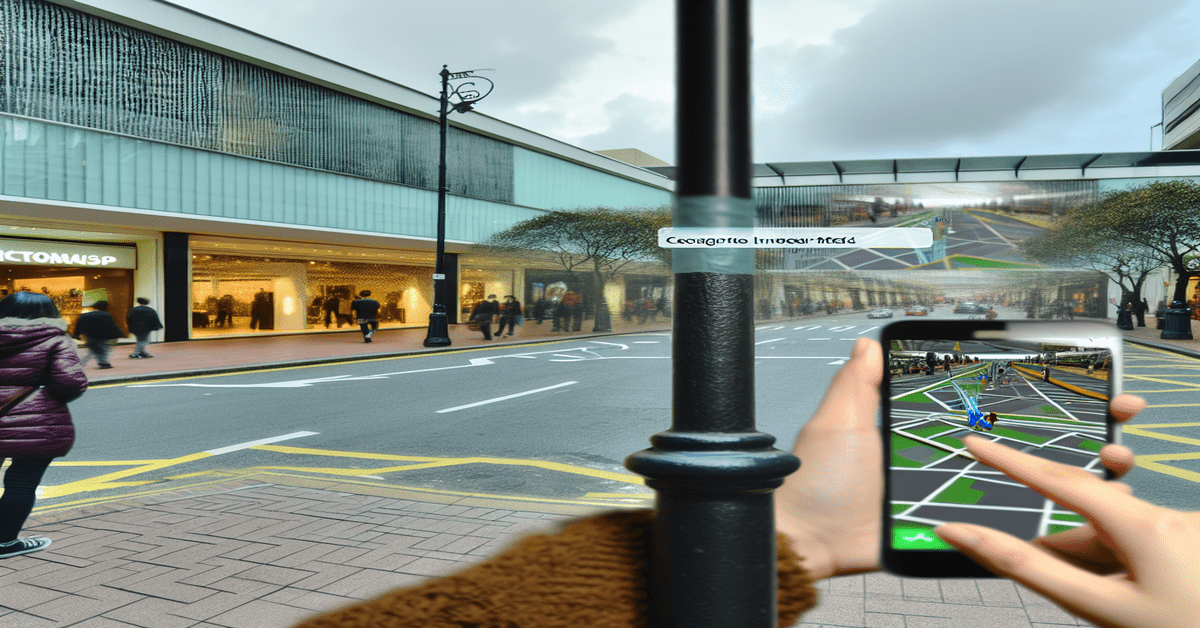
One of the most exciting features of Google Maps is **Live View**, which uses your device’s camera to provide an immersive, augmented reality navigation experience. By overlaying directions on real-world images, Live View makes it easier to orient yourself and find your way in unfamiliar surroundings. Whether you’re exploring a new city or trying to locate a specific address, this feature can help you navigate more intuitively and confidently.
To use Live View, simply hold up your phone and point the camera in the direction you’re facing. Google Maps will display arrows and other visual cues to guide you to your destination. This feature is particularly useful when navigating complex urban environments, where traditional map views may not provide enough context or detail.
2. Incognito Mode: Browsing Google Maps Privately
Privacy is a growing concern for many users, and Google Maps has addressed this by introducing **Incognito Mode**. Similar to the feature found in Google Chrome, Incognito Mode allows you to use Google Maps without saving your search history or location data. This can be particularly useful when planning surprise trips or searching for sensitive locations.
To enable Incognito Mode, simply tap on your profile picture in the Google Maps app and select “Turn on Incognito Mode.” While in this mode, your searches and location data will not be saved to your Google account, ensuring a higher level of privacy.
3. Custom Maps: Creating Personalized Maps for Any Occasion
Google Maps isn’t just for navigation; it’s also a powerful tool for creating custom maps tailored to your specific needs. With the **Custom Maps** feature, you can create maps with markers, labels, and annotations to plan trips, share specific locations with others, or simply organize your favorite spots in a city.
To create a custom map, visit the Google Maps website and click on the menu icon in the top left corner. From there, select “Your Places” and then “Maps.” Click on “Create Map” to begin adding markers, drawing lines and shapes, and customizing your map’s appearance. Once you’ve created your custom map, you can share it with others or embed it on a website.
4. Street View: Exploring Locations Before You Visit
**Street View** is a valuable tool for familiarizing yourself with a location before you visit. By providing 360-degree, panoramic views of streets and landmarks, Street View allows you to virtually explore an area and get a sense of its layout and appearance. This can be especially helpful when planning trips to unfamiliar destinations or scoping out a neighborhood before a move.
To access Street View, simply navigate to a location on Google Maps and drag the yellow “Pegman” icon onto the map. Blue lines will appear, indicating where Street View is available. Drop the Pegman onto a blue line, and you’ll be transported to a panoramic view of that location.
5. Real-Time Traffic and Road Conditions
One of the most practical features of Google Maps is its ability to provide **real-time traffic updates and road condition information**. By analyzing data from millions of users and incorporating live traffic feeds, Google Maps can help you avoid congested areas and plan your route more efficiently.
To view traffic information, simply open Google Maps and zoom in on your desired location. Traffic conditions will be displayed as color-coded lines: green for no traffic delays, orange for moderate delays, and red for heavy delays. You can also tap on a specific road to see more detailed information, such as the estimated delay time and alternative route suggestions.
6. Indoor Maps: Navigating Complex Spaces with Ease
Large public spaces like malls, airports, and train stations can be challenging to navigate, but Google Maps has a solution: **Indoor Maps**. This feature provides detailed floor plans and directions for indoor spaces, helping you find your way through complex buildings with ease.
To use Indoor Maps, zoom in on a supported location until the floor plan appears. You can then switch between floors, search for specific stores or amenities, and even get directions within the building. This feature is particularly useful for travelers navigating unfamiliar airports or shoppers trying to locate a specific store in a sprawling mall.
Elevate Your Google Maps Experience Today
As Google Maps continues to evolve and introduce new features, it’s clear that this app is much more than just a navigation tool. By leveraging these six tricks, you can unlock the full potential of Google Maps and transform the way you explore and interact with the world around you. Whether you’re a frequent traveler, a local explorer, or simply someone who wants to make the most out of their navigation experience, these features are sure to elevate your Google Maps game.
So, take a moment to explore these tricks for yourself and discover how they can enhance your daily life. Share your favorite Google Maps features with friends and family, and encourage them to join you in making the most out of this powerful app. Here’s to the next 20 years of innovation and exploration with Google Maps!
#GoogleMaps #NavigationTricks #AugmentedReality #PrivacyMatters #CustomMaps #StreetView #TrafficUpdates #IndoorNavigation
-> Original article and inspiration provided by Artie Beaty
-> Connect with one of our AI Strategists today at ReviewAgent.ai